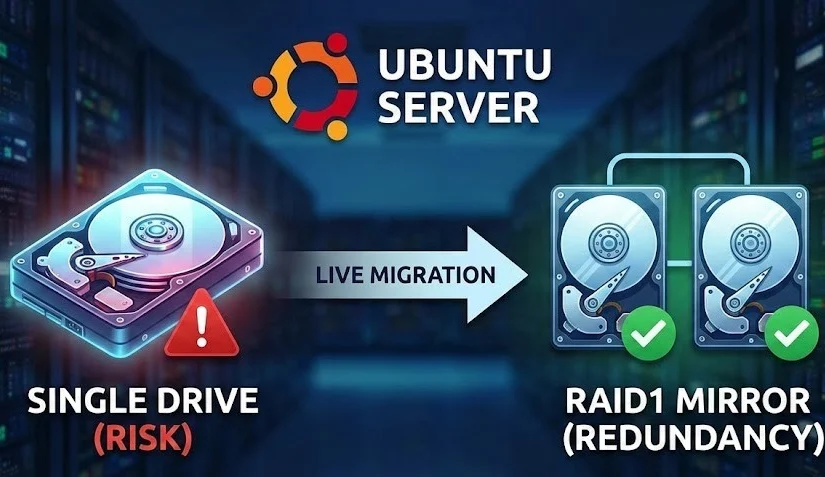
You’ve got a running Ubuntu server on a single hard drive, and that single point of failure is making you nervous. You want the redundancy of RAID 1 (mirroring), but you really don’t want the downtime and hassle of a full backup, reinstall, and restore?
Good news! You can perform an “in-flight” migration, moving your live operating system to a new RAID1 array with minimal downtime. This guide will walk you through the process.
Table of Contents
- The scenario
- Step 1: Prepare the new drive
- Step 2: Create the (degraded) RAID-array
- Step 3: Copy data
- Step 4: Configure the new system to boot
- Step 5: Booting from RAID
- Step 6: Adding the original drive to the array
The scenario
Your current Ubuntu installation is on a single drive, /dev/sdb. This guide assumes your root filesystem / and your /boot directory are both on this partition.
You have added a new, empty drive of the same size or larger, which is now /dev/sda.
Our goal: Create a RAID 1 array /dev/md0 using these two drives and make it our new bootable root filesystem.
Step 1: Prepare the new drive
First, we need to make the new drive look identical to the old one, partition-wise. We’ll copy the exact partition layout from our active drive /dev/sdb to the new one /dev/sda.
# copy partition table
sfdisk -d /dev/sdb | sfdisk /dev/sda
Now, we must tell the system that the partitions on /dev/sda are intended for RAID. We’ll use cfdisk for this. We’re focusing on the partition that will hold our root filesystem
# change partition type to "Linux RAID"
cfdisk /dev/sda
Step 2: Create the (degraded) RAID-array
Here’s the magic. We can’t use /dev/sdb2 yet because it’s our live filesystem. So, we’ll create the RAID 1 array in a degraded state, using our new partition (/dev/sda2) and a “missing” placeholder for the old one.
# create RAID array. Grub2 *does* support md/v1.x metadata
mdadm --create /dev/md0 --level=1 --raid-devices=2 missing /dev/sda2
Now, we create a filesystem on our new virtual RAID device
# Create Fileysstem on RAID array. We use a blocksize of 4KB
mkfs.ext4 -b 4096 /dev/md0
We need to tell mdadm to find this array on boot. This command scans for the new array and writes its config.
# write metadata for grub
/usr/share/mdadm/mkconf > /etc/mdadm/mdadm.conf
Step 3: Copy data
It’s time to copy our entire running system to the new array. To ensure data consistency, stop any services that write to disk, especially databases.
# stop services
service apache2 stop
service mysql stop
service php7.2-fpm stop
Mount and Copy Data. The rsync flags are needed to: preserve permissions, dont xross filesystem boundaries (i.e. into our mounted raid), preserve Hardlinks, preserve ACLs, preseve eXtended attributes.
sudo mount /dev/md0 /mnt/
# copy data
rsync -avuxHAX --exclude=/proc/* --exclude=/sys/* --exclude=/tmp/* / /mnt/
Step 4: Configure the new system to boot
Our data is copied. Now we must tell the new system how to boot from the RAID array. We need to edit the fstab on the new array to tell it to use the RAID array’s UUID as its root
# get md0 UUID
blkid /dev/md0

# set md0 UUID for / in fstab (UUID=abc..)
nano /mnt/etc/fstab
Now comes the most delicate part. Our current GRUB bootloader still boots from /dev/sdb instead of /dev/md0. We need to create a temporary, manual boot entry to get us into the new system once.
First, find your current boot entry in /boot/grub/grub.cfg. Look for the main “Ubuntu” entry (right after the “export linux_gfx_mode” line) . Copy it and add it to the end of /etc/grub.d/40_custom.
menuentry 'Ubuntu RAID' --class ubuntu --class gnu-linux --class gnu --class os $menuentry_id_option 'gnulinux-simple-465bf761-7ca9-4144-afd5-18308aae45a1' {
    recordfail
    load_video
    gfxmode $linux_gfx_mode
    insmod gzio
    insmod part_gpt
    insmod diskfilter
    insmod mdraid1x # <-- ADDED
    insmod ext2
    # UUID from mdadm -D /dev/md0
    set root='mduuid/f06346e6964aabce2749a839bc85bb78'
    # the filesystem UUID
    search --no-floppy --fs-uuid --set=root 465bf761-7ca9-4144-afd5-18308aae45a1
    # the filesystem UUID
    linux /boot/vmlinuz-5.4.0-47-generic root=UUID=465bf761-7ca9-4144-afd5-18308aae45a1 ro
    initrd /boot/initrd.img-5.4.0-47-generic
}
The entry should look something like above. Note that we modified it to boot from the raid array. The key changes are loading mdraid1x and changing the set root and linux lines to use the RAID array’s metadata UUID (which is different from its filesystem UUID!).
Finally make your temporary entry active: sudo update-grub
Step 5: Booting from RAID
Cross your fingers and reboot. In the grub menu select your temporary entry. If all went well, your system will boot, but it will be running entirely from /dev/md0.
Now that we’re in the new system, we need to make it boot this way permanently.
# regenerate grub (yes to all)
dpkg-reconfigure mdadm
You should now be able to reboot from either one of the grub entries, so you can delete the temp entry from /etc/grub.d/40_custom – just dont forget to run update-grub afterwards.
Step 6: Adding the original drive to the array
We’re not done! Our array is still degraded. /dev/sdb2 is still just an old Linux partition. We need to add it to the RAID array so it can become a true mirror. Tell mdadm to add this partition to our array.
sudo mdadm --manage /dev/md0 --add /dev/sdb2The array will immediately begin syncing. All the data from /dev/sda2 will be copied back to /dev/sdb2. This can take a long time, from minutes to hours, depending on the drive size. You can monitor the progress using watch cat /proc/mdstat.
Welcome to the world of data redundancy. Sleep well! 😴